 BibGenie Docs
MCP
Use BibGenie's local MCP server to let external clients access Zotero tools.
MCP stands for Model Context Protocol. BibGenie can start a local MCP server that lets MCP-compatible clients access Zotero-related tools.
Most users do not need MCP
If you only chat inside the BibGenie plugin, you do not need to configure MCP. MCP is mainly for advanced users, external clients, and automated workflows.
What Can MCP Do?
External clients can use BibGenie's Zotero tools to:
- Search Zotero items
- Run semantic literature search
- Read PDF attachments
- Read snapshots
- Read Zotero notes
- List tags and collections
- Create Zotero notes
- Manage tags and collections
- Get or edit metadata
What is Zotero MCP?
Zotero MCP is BibGenie's local bridge between your Zotero library and external AI clients. Instead of exporting files or manually copying metadata, an MCP-compatible client can ask BibGenie for Zotero context through a local protocol.
For example, an external client can search your library, inspect collections, read a PDF attachment, or create a Zotero note through BibGenie's MCP tools.
Core Advantages
Built in
BibGenie's MCP server runs inside the Zotero plugin. You do not need a separate Python service or custom local backend.
Local by default
The MCP endpoint runs on Zotero's local HTTP server. Your external client talks to Zotero on your own device.
Research aware
The tools are designed for Zotero workflows: papers, PDFs, collections, tags, notes, snapshots, and metadata.
External workflow friendly
MCP lets tools such as Cursor, Claude Code, Claude Desktop, and Cherry Studio use Zotero context without leaving their own interface.
Core Features
| Feature | What it helps with |
|---|---|
| Item search | Find papers by title, author, publication, keyword, or topic. |
| Semantic search | Discover related papers by meaning, not only exact keywords. |
| Metadata access | Read detailed Zotero item metadata before citing, organizing, or editing. |
| PDF reading | Read text from Zotero PDF attachments when the client needs paper content. |
| Visual PDF reading | Render PDF pages as images when figures, tables, or scanned pages need visual inspection. |
| Notes and snapshots | Read Zotero notes and web snapshots from your library. |
| Library organization | List collections and tags, create collections, and manage tags or collection membership. |
| Metadata review | Run read-only review_metadata to aggregate arXiv, Semantic Scholar, OpenAlex, DBLP, and OpenReview facts with rule diagnostics. |
| Controlled writing | Create notes or validate and apply metadata updates through edit_metadata tool calls. |
Plugin Chat vs MCP
| Mode | Best for | Setup required |
|---|---|---|
| BibGenie in-plugin chat | Most users | No |
| Local MCP Server | Users connecting Zotero to external AI clients | Yes |
Server Type and URL
BibGenie's MCP server uses Streamable HTTP. The Server URL usually looks like:
http://127.0.0.1:23119/bibgenie/mcpThe port can be different if your Zotero HTTP server uses a custom port. Always copy the Server URL shown in BibGenie settings instead of typing it by hand.
Do not test MCP by opening the URL in a browser
MCP clients connect by sending HTTP POST JSON-RPC requests. Opening the Server URL directly in a browser sends a GET request and is not a reliable MCP connection test. Use Test Connection in BibGenie settings or an MCP client instead.
Enable MCP Server
Open BibGenie settings.
Find the MCP Server section.
Turn on Enable MCP Server.
Copy the displayed Server URL.
Paste the URL into your external MCP client.
Click Test Connection to verify it works.
Connect External Clients
Use the Server URL from BibGenie settings in clients that support Streamable HTTP MCP.
Cursor
Cursor can connect directly to BibGenie's Streamable HTTP endpoint.
Open Cursor Settings and go to Tools & MCP.
Click + New MCP Server.
Paste this configuration:
{
  "mcpServers": {
    "ZoteroBibGenie": {
      "url": "http://127.0.0.1:23119/bibgenie/mcp"
    }
  }
}
Replace the URL if BibGenie settings show a different port.
Save the configuration. When Cursor shows the MCP server as connected, you can use Zotero context in Cursor chat.
Claude Code
Claude Code supports HTTP MCP servers directly:
claude mcp add ZoteroBibGenie --transport http http://127.0.0.1:23119/bibgenie/mcpReplace the URL if BibGenie settings show a different port.
Claude Desktop
Some Claude Desktop builds connect to stdio MCP servers more reliably than local HTTP endpoints. In that case, use mcp-remote as a small bridge from Claude Desktop to BibGenie's local HTTP server.
Install Node.js if node and npx are not available on your system.
Open Claude Desktop.
Open Settings, then go to the Developer section.
Click Edit Config to open claude_desktop_config.json.
Add this configuration:
{
  "mcpServers": {
    "ZoteroBibGenie": {
      "command": "npx",
      "args": ["mcp-remote", "http://127.0.0.1:23119/bibgenie/mcp"]
    }
  }
}
Replace the URL if BibGenie settings show a different port.
Save the file and restart Claude Desktop.
Cherry Studio
Cherry Studio supports Streamable HTTP MCP directly.
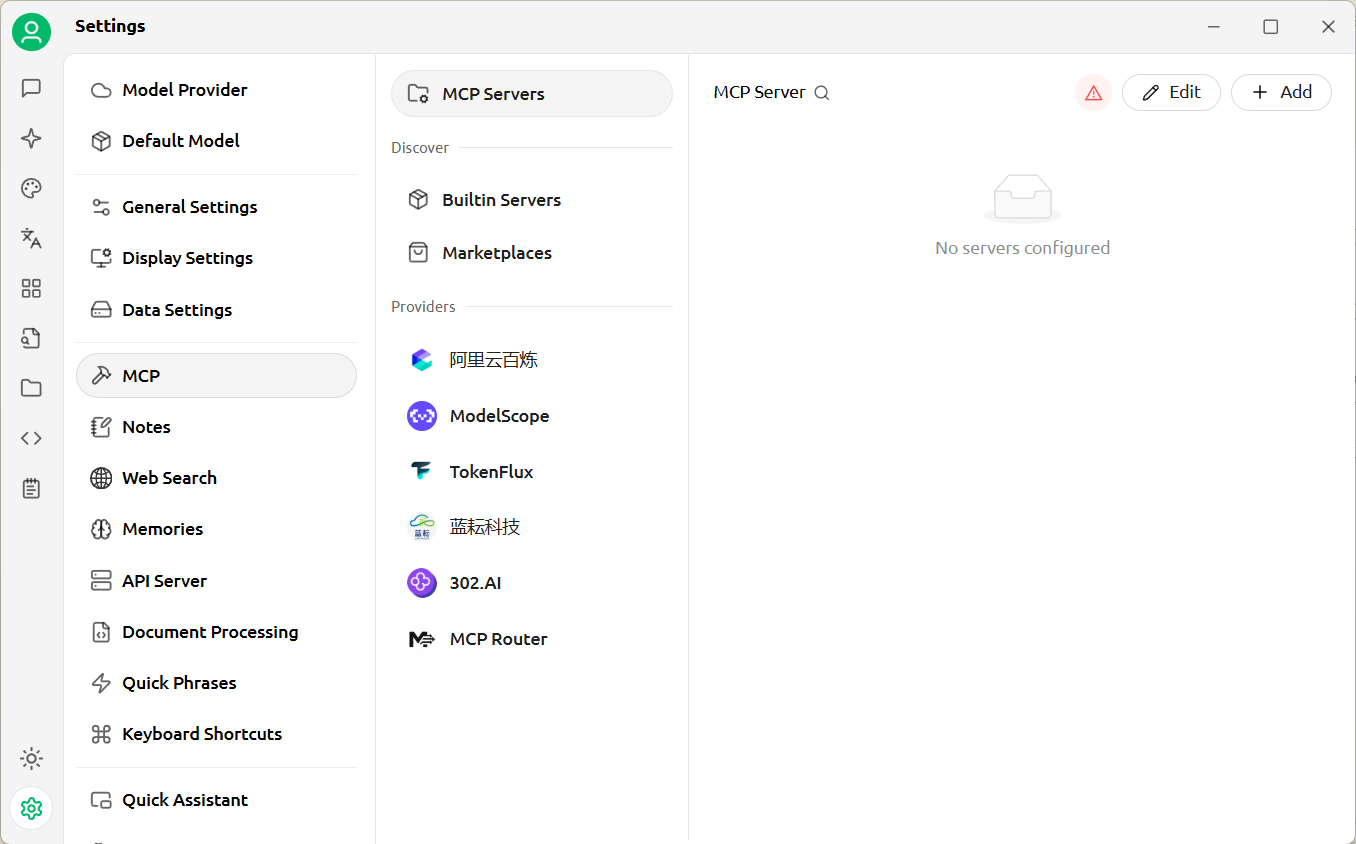
Open Cherry Studio Settings and switch to the MCP tab.
Click Add and choose Quick Create.
Fill in:
- Name:
ZoteroBibGenie - Type:
Streamable HTTP - URL: the Server URL copied from BibGenie settings
Optional: open Advanced Settings and set:
- Provider URL:
https://www.bibgenie.com/ - Logo URL:
https://www.bibgenie.com/favicon.png
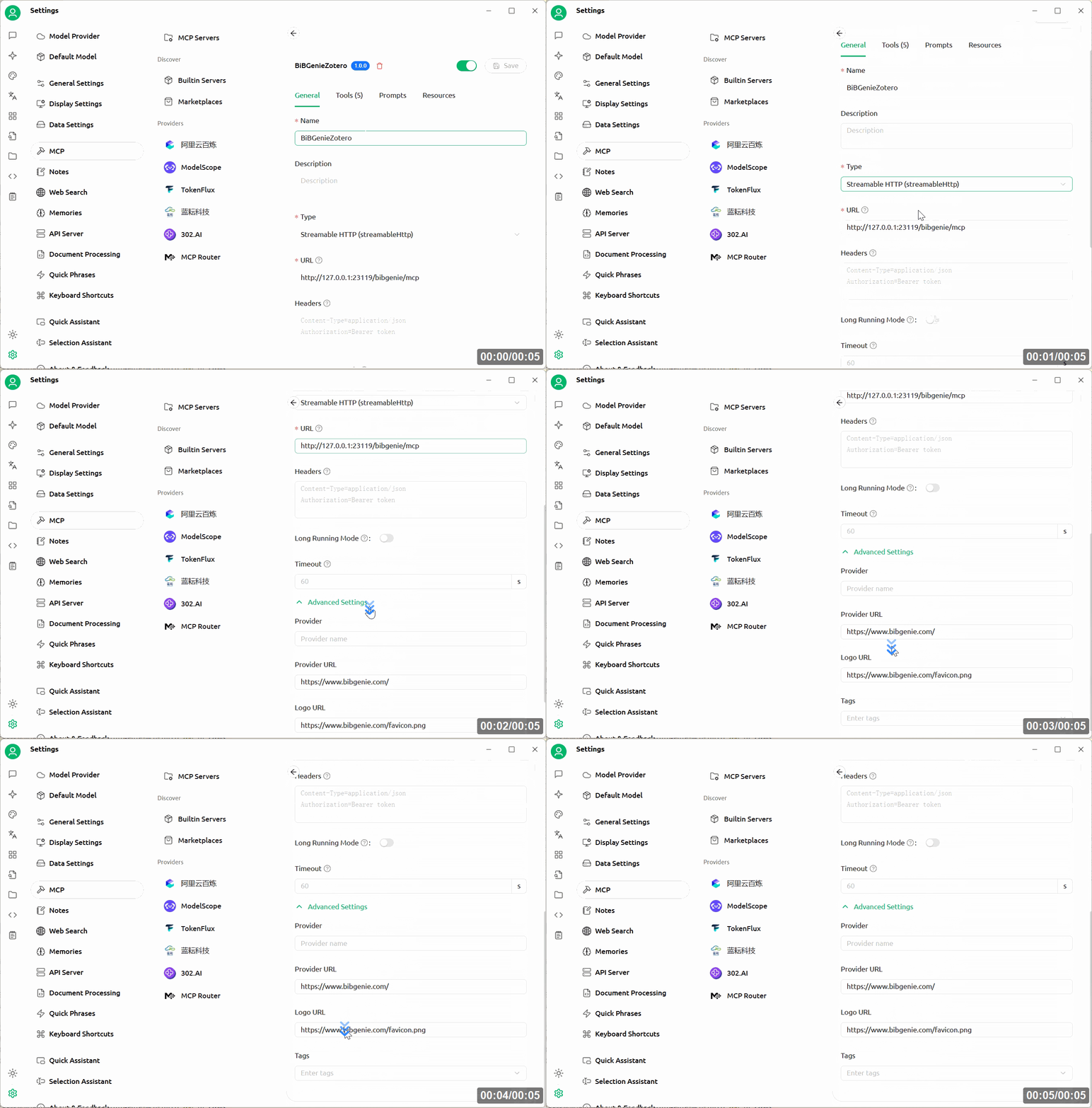
Click Save, turn the service on, and use Cherry Studio's verify button to check the connection.
Example Prompts
- "Find Zotero papers about retrieval-augmented generation published after 2023."
- "Read the PDF attachment for this Zotero item and summarize the paper's core contribution."
- "List items in my machine learning collection and find entries missing year metadata."
Security Recommendations
- Share the MCP Server URL only with clients you trust.
- Be careful with tools that write to your Zotero library, such as creating notes, editing metadata, or managing tags and collections.
- Turn off the server when you are not using MCP.
- If an external client behaves unexpectedly, stop the MCP server and review the client configuration.