 BibGenie Docs
Model Configuration & Management
A guide to managing BibGenie models.Learn how to manage access to official models, and how to add and configure custom models like OpenAI, DeepSeek, and local Ollama.
Overview
BibGenie aims to provide Zotero users with a flexible and powerful AI experience. We offer two complementary ways to use models:
- Official Models: A collection of models selected, hosted, and continuously optimized by BibGenie. They are ready to use out of the box without any cumbersome configuration.
- Custom Models: Designed for advanced users, supporting the integration of any API service such as OpenAI, DeepSeek, Anthropic, or Ollama to meet your personalized needs.
You can manage all models centrally on the Model Settings page of the plugin.
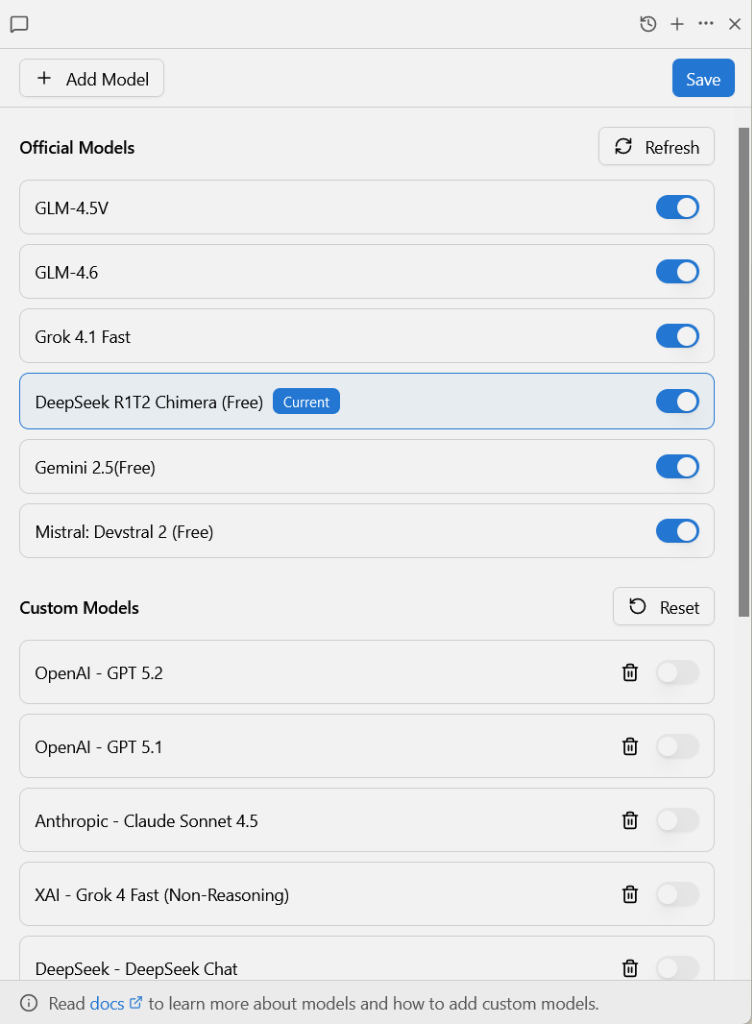
Official Models
Official Models are a list of models carefully selected to enhance your Zotero research workflow. We not only focus on the advancement of the models but also pay more attention to their actual performance in scenarios such as academic research, literature reading, and long-text understanding. We will regularly update this list to integrate verified excellent models like DeepSeek-v3.2, GPT-5.2, GLM-4.7, Kimi K2 Thinking, and Gemini 3, ensuring you always have a capable research assistant.
Access Permissions
Depending on your account type, you have access to different tiers of model resources:
| User Type | Available Models | Features | Best For |
|---|---|---|---|
| Guest User (Guest) | Basic Free Models | Daily limits, no login required | Quick experience, simple Q&A |
| Free User (Free) | Enhanced Free Models | Higher rate limits, more model choices | Daily literature reading, translation |
| Pro User (Pro) | All Models | Unlimited access, supports latest multimodal models (Vision), priority response | Deep research, complex reasoning, chart analysis |
Automatic Updates
The Official Models list is dynamic. Click the "Refresh" button in the top right corner of the list to sync the latest server-side model configuration for your user type.
Model Status
- Toggle: You can turn specific models on or off according to your preference. Disabled models will not appear in the selection list of the chat interface, helping you keep the interface clean.
- Current: A tag marked as Blue indicates the model currently being used in the chat.
Custom Models
If you have your own API Key (e.g., OpenAI key), or wish to use locally running models (e.g., Ollama), you can integrate them into BibGenie via the "Custom Models" feature, customizing your Zotero AI environment.
How to Add a Custom Model
Open the Add Window: Click the "+ Add Model" button in the top left corner of the Custom Models area.
Fill in Model Configuration:
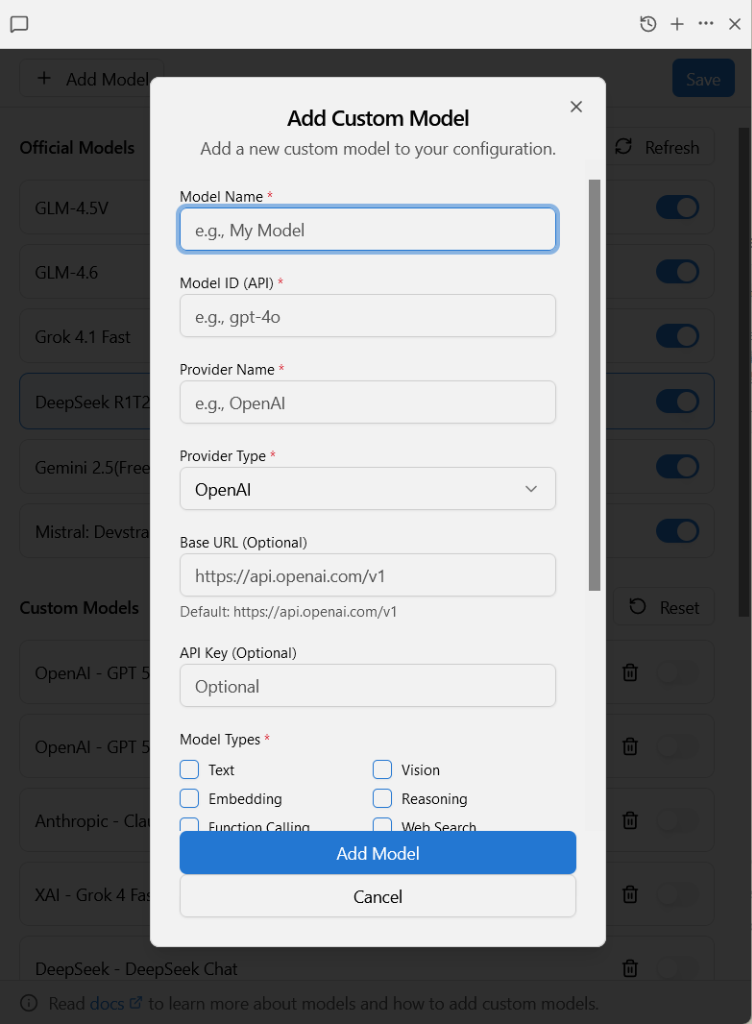
Please fill in the following key information according to your provider:
- Model Name: Give the model an easily recognizable name (e.g., "My GPT-4").
- Model ID (API): The actual model ID called (e.g.,
gpt-5.2,gemini-3 pro, etc.). - Provider Type: Select the corresponding protocol type.
OpenAI: Suitable for OpenAI services.Anthropic: Suitable for the Claude series.xAI: Suitable for xAI services.DeepSeek: Suitable for DeepSeek services.OpenRouter: Suitable for OpenRouter services.Ollama: Suitable for local Ollama services.OpenAI compatible: Suitable for OpenAI-compatible API services.
- Base URL: The request address of the API.
- For types other than
OpenAI compatible, a default Base URL is built-in, so you don't need to fill it in. - If you are using a relay service, please fill in the URL provided by the relay provider.
- For types other than
- API Key: Your private key (stored locally, will not be uploaded).
Select Model Capabilities: Check the features supported by the model:
Text: Supports text conversation (must be checked).Vision: Supports image understanding (checking this allows uploading images in chat).Reasoning: Marks as a reasoning model.
Save: Click "Add Model" to complete the addition. Remember to click the "Save" button in the top right corner of the main interface to persist your configuration.
Common Configuration Examples
Ollama Local Models
To integrate Ollama, ensure Ollama is running.
- Base URL: Usually
http://localhost:11434 - API Key: Fill in anything (e.g.,
ollama) - Model ID: Must match the name in
ollama list(e.g.,llama3:8b)